Step-by-step guide to install Showel in your Jira workspace
Installation Guide
Learn how to install Showel AI Insights in your Jira Cloud workspace.
Prerequisites
Before installing Showel, ensure you have:
- Jira Cloud administrator access - Required to install apps from the Atlassian Marketplace
- A Cursor AI account - With API access enabled
- Active Cursor team subscription - For team-wide token tracking
Installation Steps
1. Access the Atlassian Marketplace
Navigate to Showel AI Insights on the Atlassian Marketplace.
2. Install the App
- Click the Try it free or Get it now button
- Select your Jira site from the dropdown
- Review the permissions required:
- Read and write Jira issue data
- Access external APIs (Cursor API)
- Store configuration data
- Click Install to confirm
The installation process typically takes 30-60 seconds.
3. Configure API Access
After installation, you'll need to connect your Cursor account:
- Navigate to Settings > Apps > Showel
- You'll see the Showel admin page with sidebar navigation
- Click on API Configuration in the sidebar (this is the default view)
- Enter your Cursor API credentials:
- API Key: Your Cursor Admin API key
- Account ID: Your Cursor team account ID
- Click Save Configuration and then Test Connection to verify
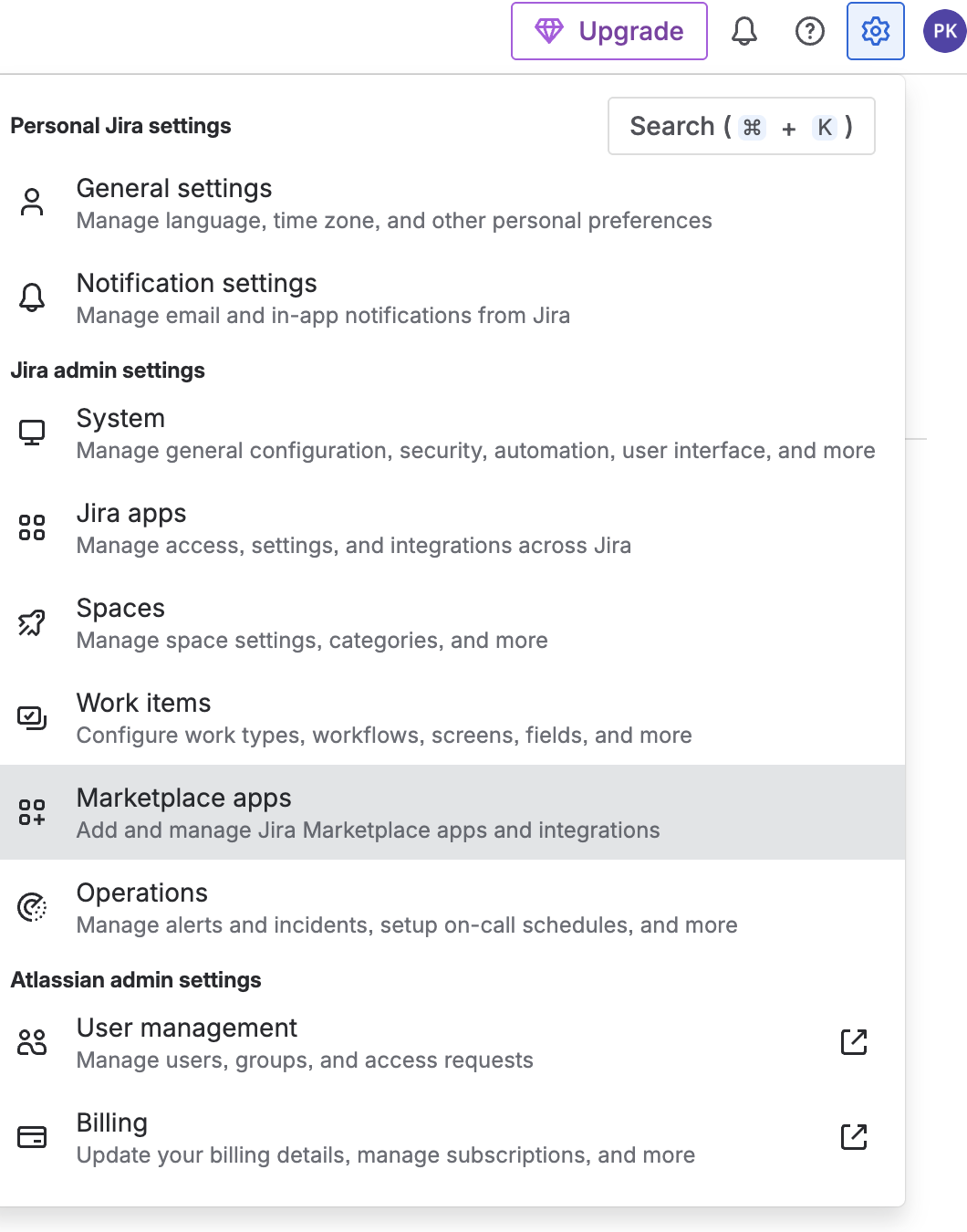 Showel Admin Page
The Showel admin page with sub-navigation in the sidebar
Showel Admin Page
The Showel admin page with sub-navigation in the sidebar
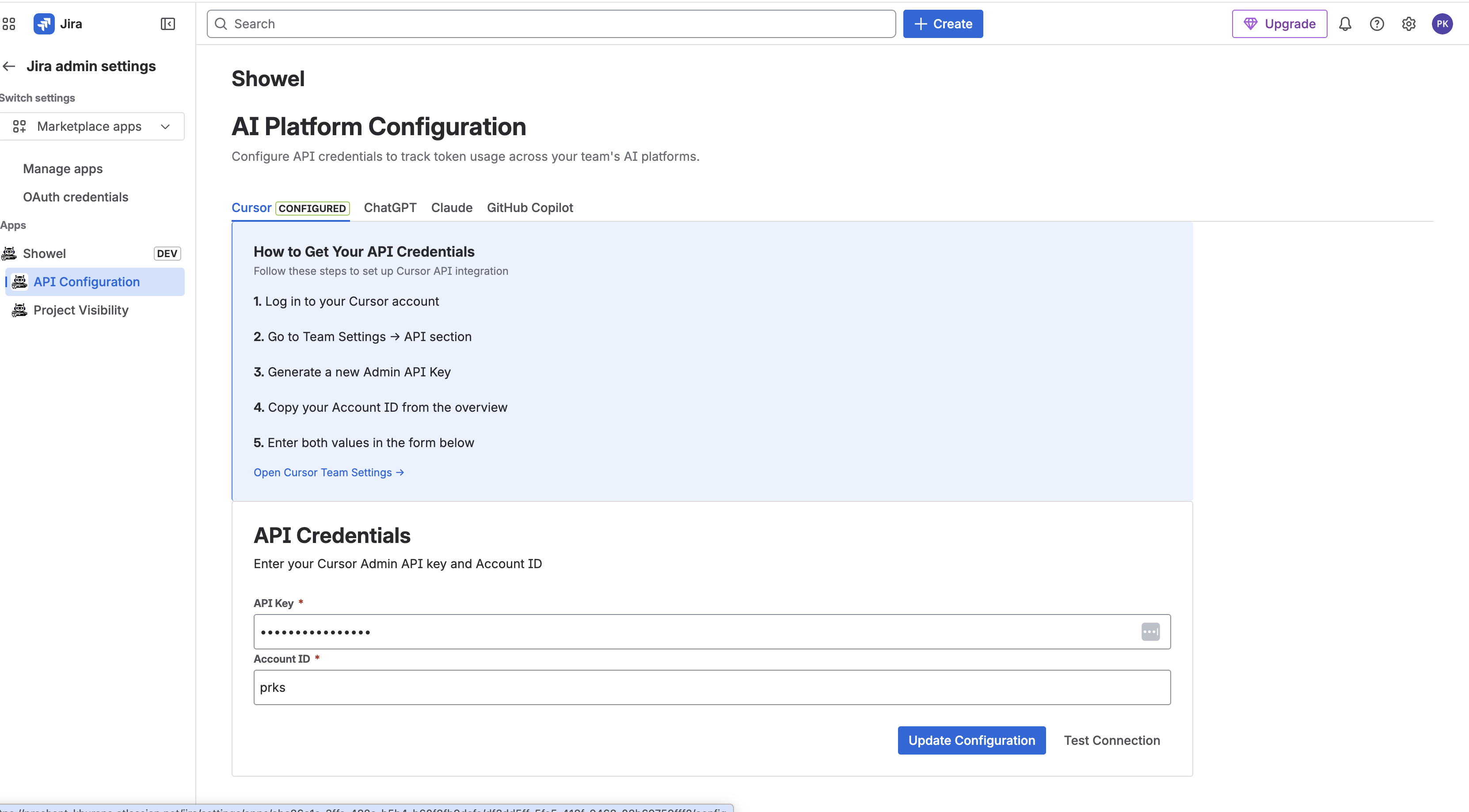 API Configuration Form
API Configuration page showing the Cursor API setup form
API Configuration Form
API Configuration page showing the Cursor API setup form
Where to find your Cursor API key:
- Log in to your Cursor account
- Go to Settings > API Keys
- Generate a new Admin API key
- Copy the key (you won't be able to see it again)
3.5. Configure Project Visibility (Optional)
Control which Jira projects can access Showel reports:
- In the Showel admin page, click Project Visibility in the sidebar
- You'll see a list of all your Jira projects
- Use the toggles or bulk actions to allow/deny projects
- Projects are denied by default (opt-in security model)
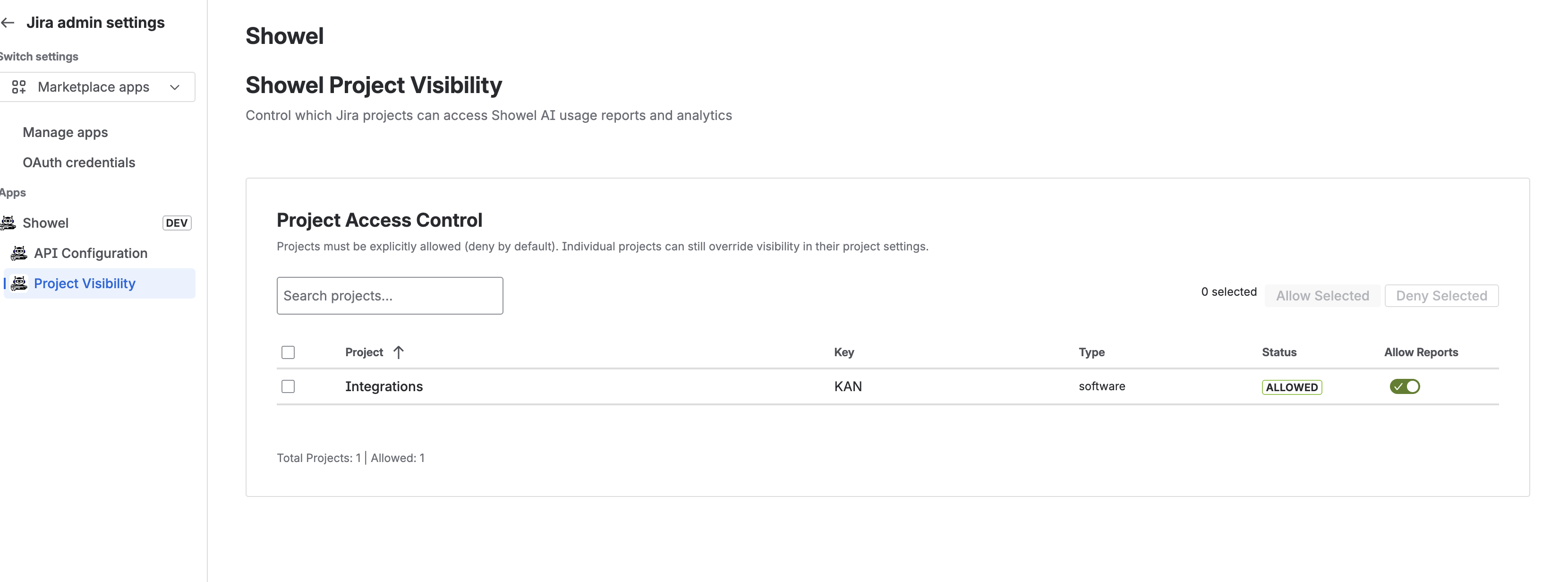 Project Visibility Configuration
Project Visibility page showing access controls for each Jira project
Project Visibility Configuration
Project Visibility page showing access controls for each Jira project
Note: Only allowed projects will see Token Usage Reports and AI Adoption Analytics. This ensures data is only visible to authorized teams.
4. Verify Installation
To confirm Showel is installed correctly:
- Navigate to Settings > Apps > Showel to verify the admin pages load
- Go to any allowed Jira project and check:
- Token Usage Report in the project sidebar
- AI Adoption Analytics in the project settings
- Open any Jira issue and look for the Token Usage custom field
If you see these elements, congratulations! Showel is successfully installed and configured.
Troubleshooting
App Not Appearing
If Showel doesn't appear after installation:
- Refresh your browser (Ctrl+R or Cmd+R)
- Clear your browser cache
- Wait a few minutes and try again
API Connection Issues
If you're having trouble connecting to the Cursor API:
- Verify your API key is correct and hasn't expired
- Ensure your Cursor account has API access enabled
- Check that your account ID matches your team account
Permission Errors
If you see permission errors:
- Confirm you have Jira administrator access
- Check that all required permissions were granted during installation
- Try reinstalling the app with proper permissions
Next Steps
Now that Showel is installed:
- Quick Start Guide - Get up and running in 5 minutes
- Features Overview - Learn about all available features
- Tracking Usage - Start monitoring token consumption
Uninstalling Showel
If you need to uninstall Showel:
- Go to Settings > Apps > Manage apps
- Find "Showel AI Insights" in the list
- Click Uninstall
- Confirm the uninstallation
Note: Uninstalling will remove all custom fields and stored configuration data.
Last updated: 1/20/2026