Get up and running with Showel in 5 minutes
Quick Start Guide
Get started with Showel AI Insights in just a few minutes. This guide will walk you through the essential features to start tracking AI token usage right away.
Step 1: Configure Your API Connection
First, connect Showel to your Cursor account:
- Click on Settings (⚙️) in your Jira navigation
- Select Apps > Showel
- You'll see the Showel admin page with sidebar navigation
- Click API Configuration in the sidebar (this is the default view)
- Enter your credentials:
- API Key: Paste your Cursor Admin API key
- Account ID: Enter your team account ID
- Click Save Configuration and then Test Connection
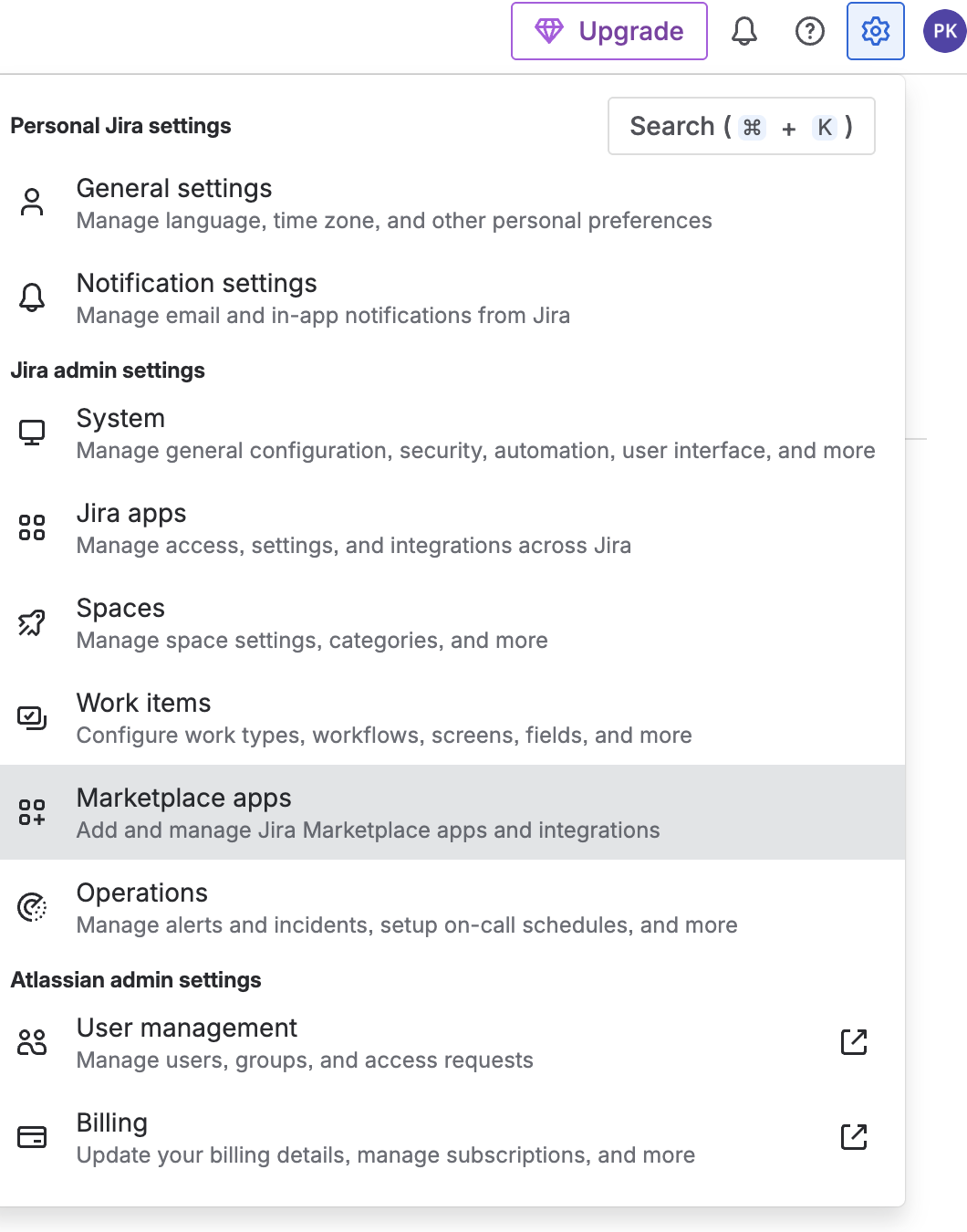 Showel Admin Page
Showel admin page showing sub-navigation in the sidebar
Showel Admin Page
Showel admin page showing sub-navigation in the sidebar
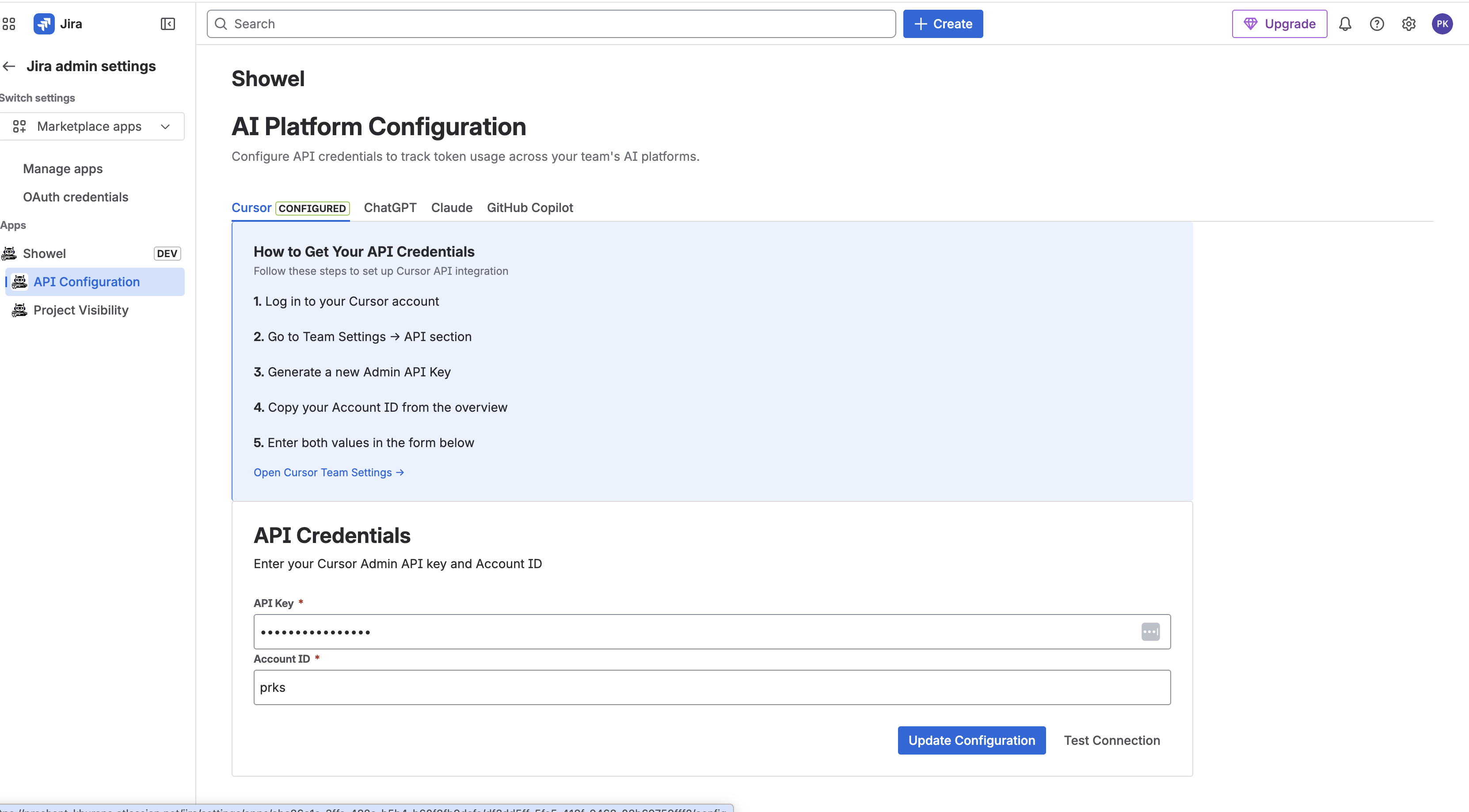 API Configuration Form
API Configuration page where you enter your Cursor API credentials
API Configuration Form
API Configuration page where you enter your Cursor API credentials
You should see a success message confirming the connection.
Step 1.5: Set Up Project Access
Choose which projects can access Showel reports:
- Click Project Visibility in the Showel admin sidebar
- Select projects that should have access to analytics:
- Use checkboxes to select multiple projects
- Click Allow Selected to grant access
- Or use individual toggles for each project
- Projects are denied by default for security
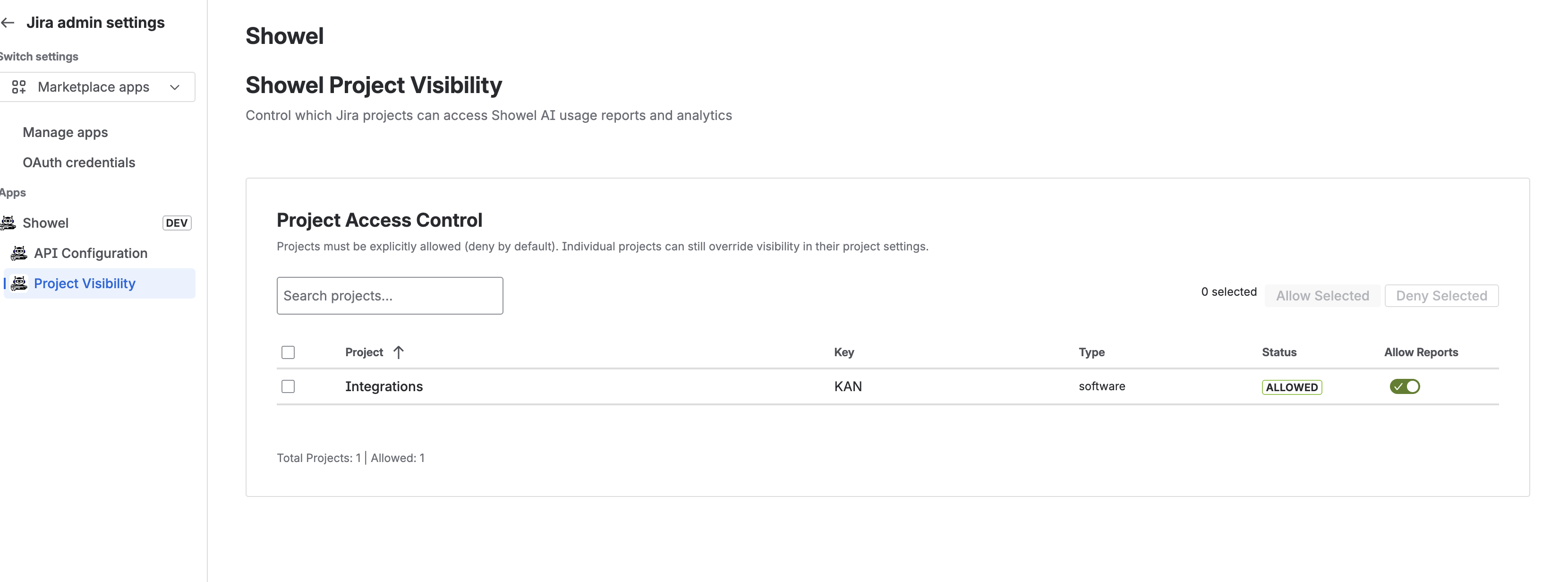 Project Visibility Setup
Managing project access with bulk actions and individual toggles
Project Visibility Setup
Managing project access with bulk actions and individual toggles
Tip: Start by allowing your main development projects, then expand access as needed.
Step 2: View Team Members
Showel automatically syncs your Cursor team members and displays their usage:
- Navigate to any allowed project in Jira
- Click Token Usage Report in the project sidebar
- You'll see a list of all team members with Cursor access
- Each member's token usage is displayed with filtering options
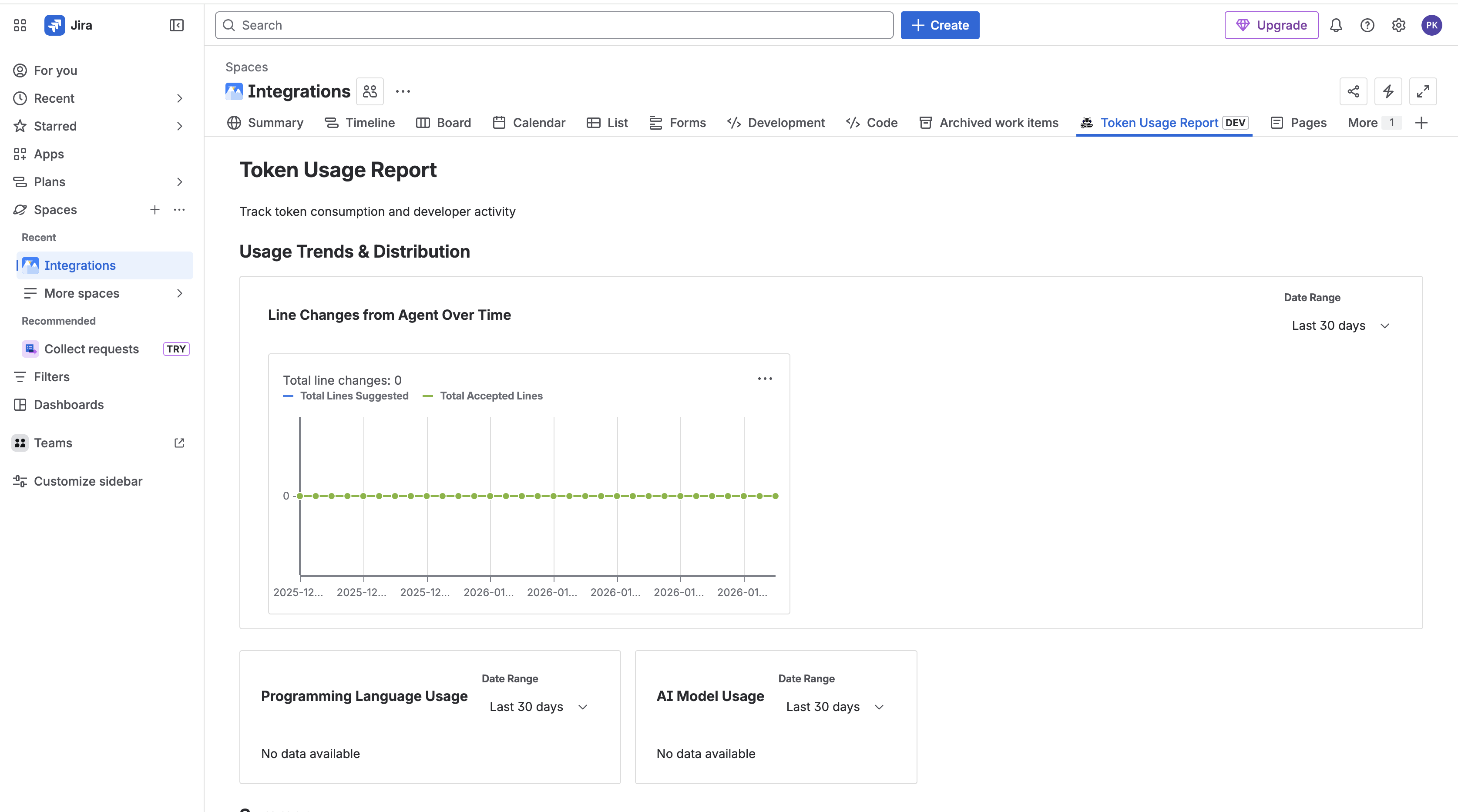 Token Usage Report
Token usage report showing team member usage in a project
Token Usage Report
Token usage report showing team member usage in a project
Step 3: View AI Adoption Analytics
Explore team AI usage patterns and adoption metrics:
- Navigate to any allowed project
- Click AI Adoption Analytics in the project sidebar
- Review key metrics:
- Usage Percentage: % of team members actively using AI
- Token Efficiency: Average tokens per active developer
- Acceptance Rate: % of AI suggestions accepted
- Explore the charts showing:
- Active users over time
- Top programming languages
- AI models used
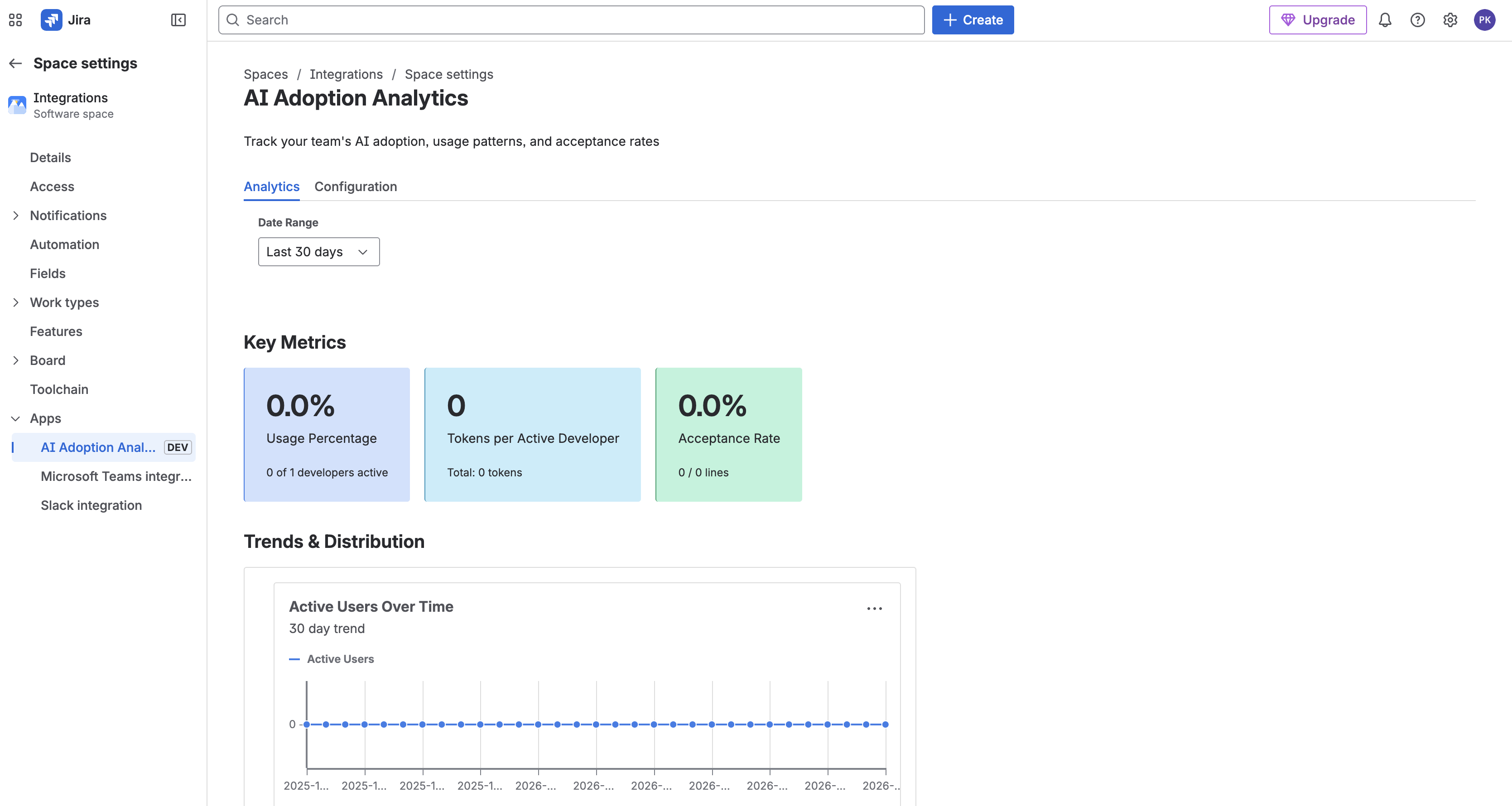 AI Adoption Analytics
 showing team usage patterns and trends
AI Adoption Analytics
AI Adoption Analytics showing team usage patterns and trends
Configuration Options
Switch to the Configuration tab to:
- Toggle visibility of AI metrics for the project
- Force refresh cached data
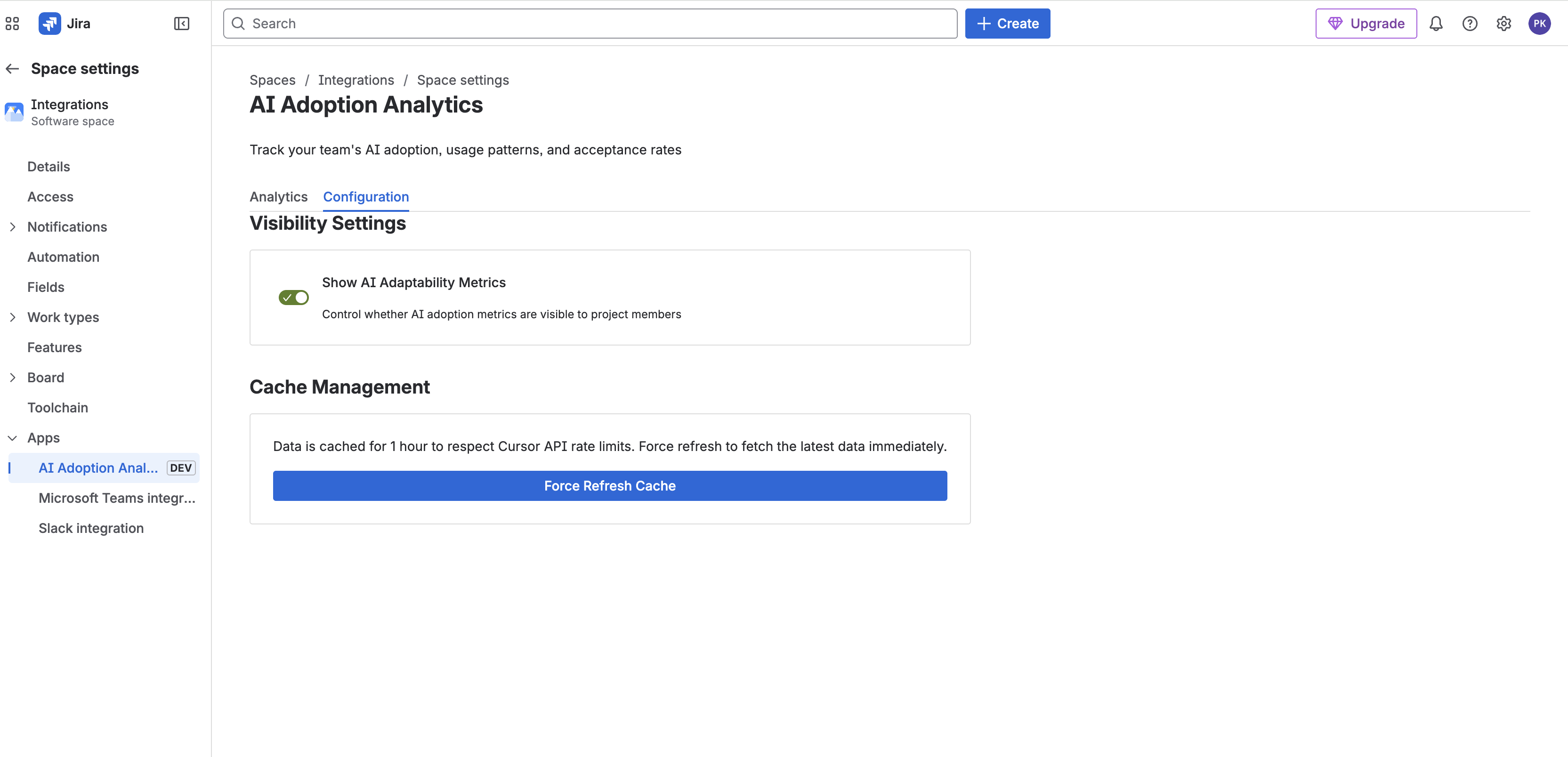 AI Analytics Configuration
Configuration tab with visibility toggle and cache refresh
AI Analytics Configuration
Configuration tab with visibility toggle and cache refresh
Developer Breakdown
Scroll down to see detailed per-developer metrics:
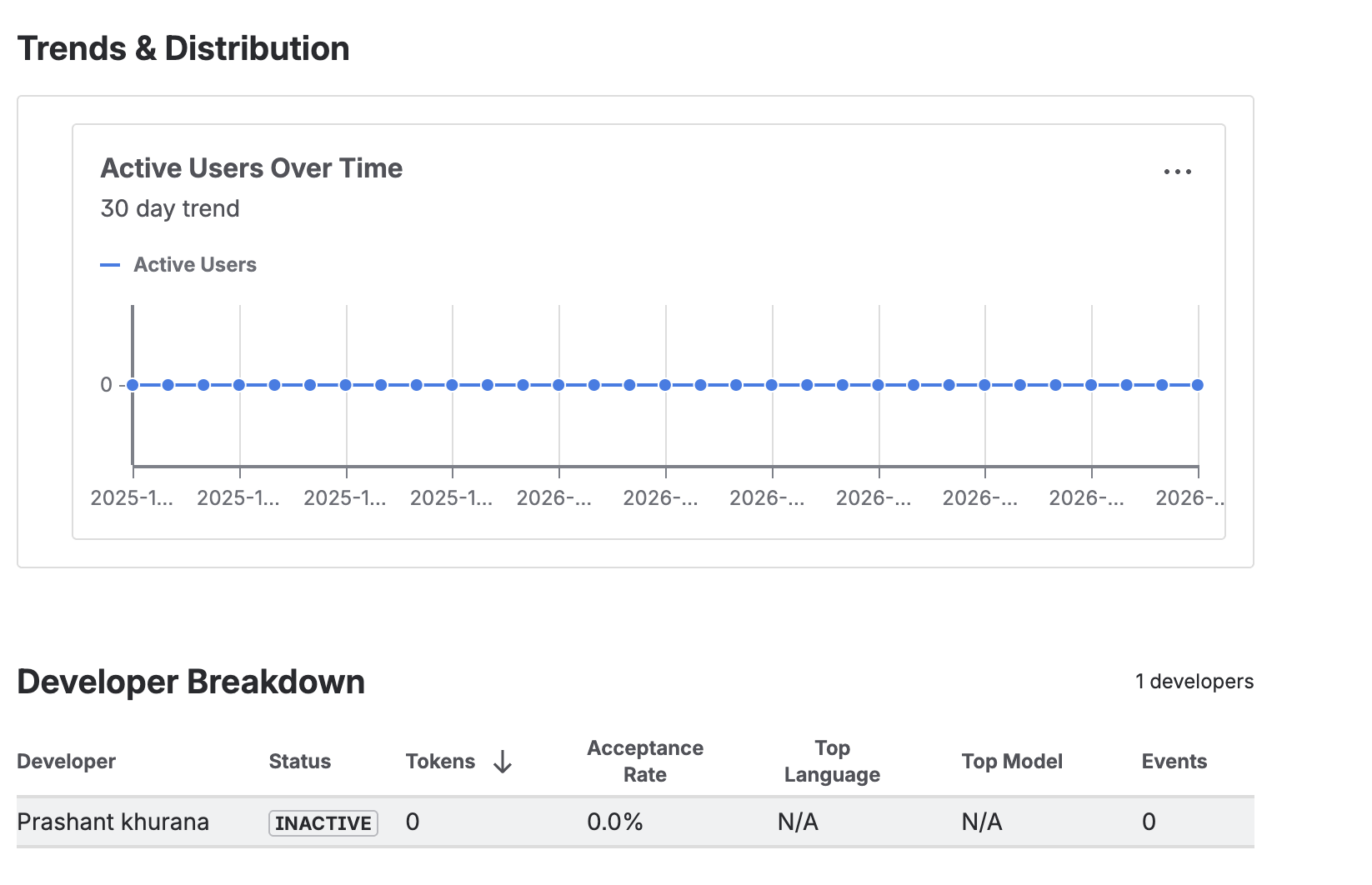 Developer Breakdown
Table showing individual developer adoption metrics
Developer Breakdown
Table showing individual developer adoption metrics
Step 4: Check Token Usage on Issues
View token usage directly on Jira issues (available in allowed projects):
- Open any Jira issue in an allowed project
- Scroll to the Details section
- Look for the Token Usage custom field
This field shows the token consumption for the issue's assignee over the last 30 days.
Note: This feature only works if the project has been allowed in Project Visibility settings.
Common Use Cases
Track Individual Usage
To monitor a specific developer's consumption:
- Go to AI Adoption Analytics in any allowed project
- Scroll down to the Developer Breakdown table
- Find the developer and view their detailed metrics
- Check their token usage, active days, and acceptance rate
Compare Team Performance
Compare usage across your team:
- View the AI Adoption Analytics overview
- Review the usage percentage and active users chart
- Check the Developer Breakdown table for detailed comparisons
- Identify adoption patterns and outliers
Monitor Project Costs
Track AI costs for specific projects:
- Ensure the project is allowed in Project Visibility settings
- Navigate to Token Usage Report in the project
- Review token consumption by team member
- Use the data to calculate project-specific AI spending
Manage Project Access
Control which teams can view analytics:
- Go to Settings > Apps > Showel > Project Visibility
- Use bulk actions to allow multiple projects at once
- Use individual toggles for granular control
- Projects are denied by default for security
Tips for Success
- Set up regular reports - Schedule weekly or monthly usage reviews
- Monitor trends - Watch for unusual spikes in consumption
- Educate your team - Share usage data to promote awareness
- Optimize usage - Identify opportunities to reduce unnecessary AI calls
Need More Help?
- Features Overview - Explore all Showel features
- Tracking Usage - Deep dive into usage monitoring
- FAQ - Common questions and answers
Next Steps
Now that you're familiar with the basics:
- Explore the User Guide for advanced features
- Set up automated reports for your team
- Customize the Token Usage field display
- Integrate Showel data into your development workflow
Happy tracking! 🚀
Last updated: 1/20/2026